
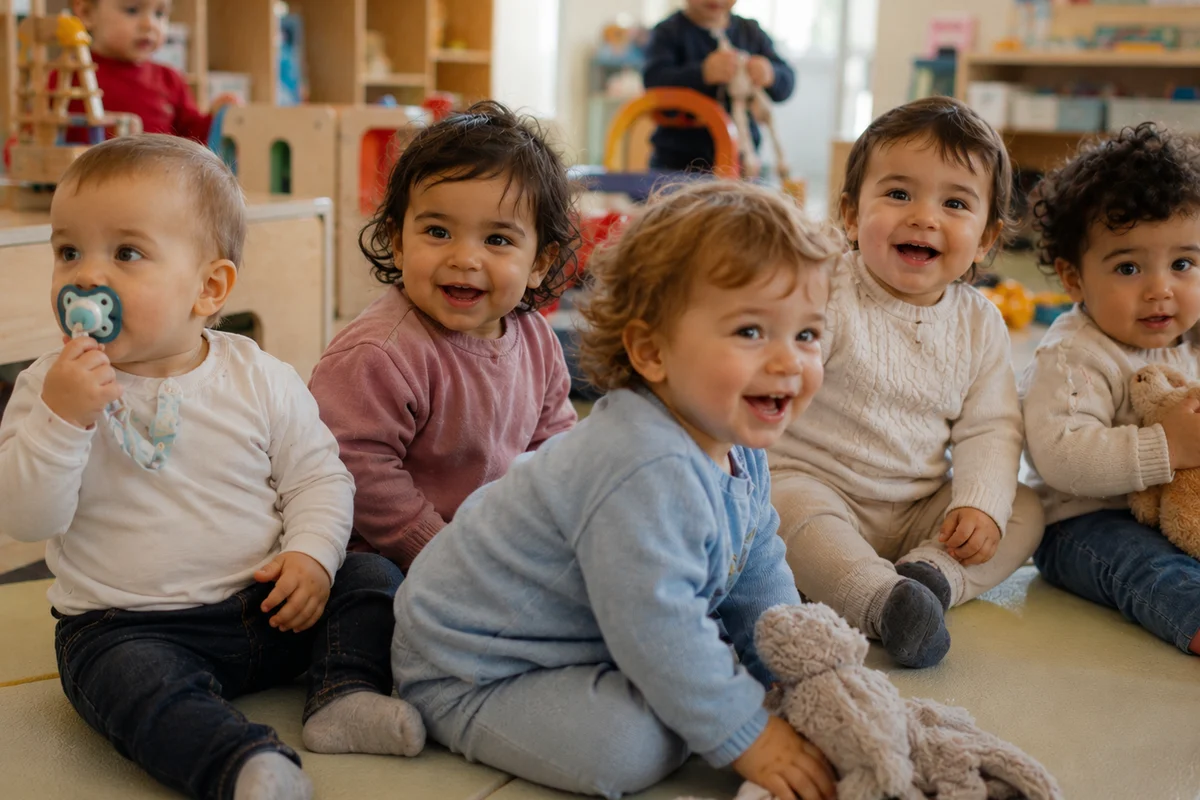
A painting session, a first step in the garden, a fit of giggles at nap time. Families love receiving these moments. But some parents don't want their child to appear in group photos. Until now, you had to blur faces with an external tool before putting the photo online. From now on, this step is built right into Kidola, at the moment you upload. Your photo editing software can go on holiday: it has earned it.
In short: with Kidola, you blur a child's face at the very moment you upload the photo, choosing the blur intensity (S, M or L). No external tool, no switching between apps, and every child's image rights are respected.
What changes
Before, a lovely group photo was often a problem. As soon as a child whose parents had refused image sharing appeared in it, you had to open photo editing software, blur the face by hand, save again, and only then upload the photo to Kidola. A lot of steps for a simple memory.
Now, blurring happens at upload, directly in Kidola. You choose the intensity, light, medium or strong, check the result on screen, and share. No more external tool, no more switching between apps.
You stay in control of every photo: what you blur, how strongly, and when you click upload.
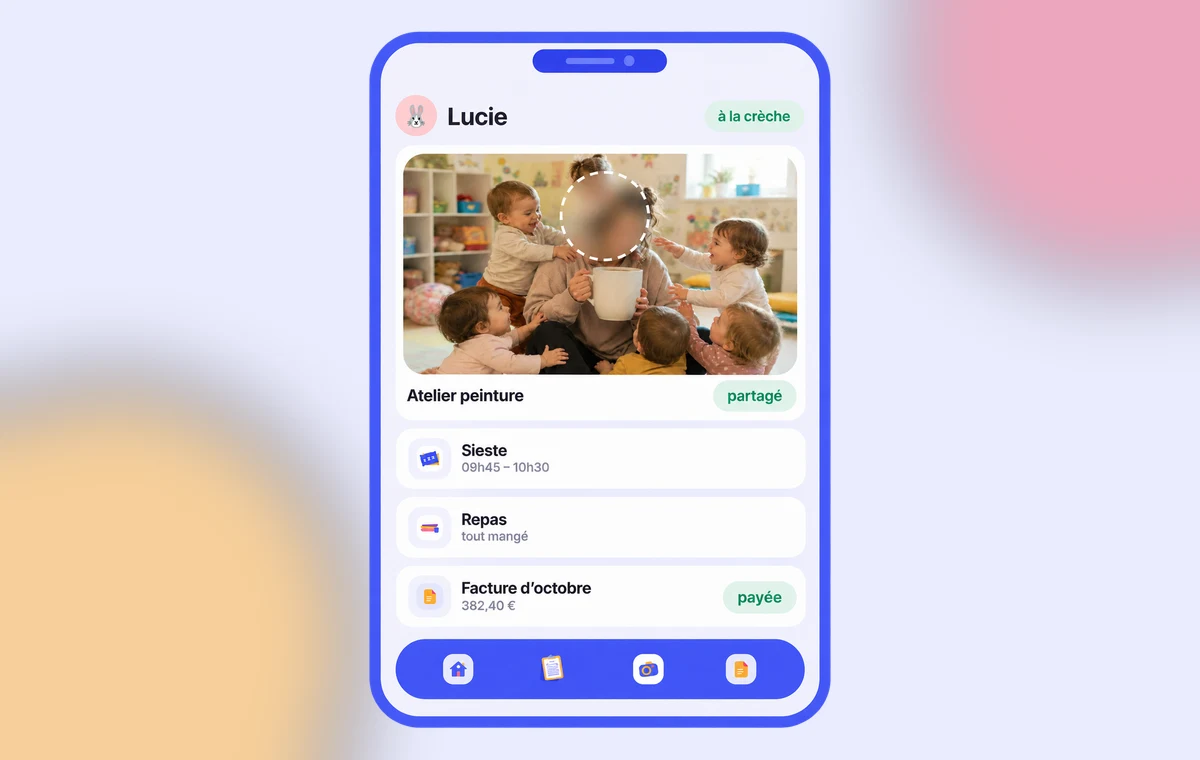
A real-life example: the painting session
The room is buzzing. Five children, hands covered in paint (and sleeves too, a little), around the same big sheet of paper. The photo is perfect. But the parents of one of them have refused image sharing.
Before, this photo ended up at the back of the phone, never shared, or went through a photo editing app one evening after work. Today, as you upload it to Kidola, you blur the face concerned, set the intensity, check, and upload. The memory reaches the families, and image rights are respected.
Nobody is left out, and nobody is exposed.
The benefits for your setting
- **Image rights respected.** You blur the faces of children whose parents have not consented to sharing, which helps you stay GDPR compliant.
- **No external tool.** Blurring is built into Kidola. No more photo editing software or extra steps before upload.
- **Intensity of your choice.** Light, medium or strong: you adjust the blur to each photo, and you can reset at any time.
- **More moments shared.** The best photos are often group photos. You can finally send them, instead of keeping them aside.

How do you blur a face on a nursery photo with Kidola?
- In **Photos**, select the child concerned and add your photo.
- Under the **blur** setting, choose the intensity: S (light), M (medium) or L (strong). The result appears instantly.
- Adjust if needed, use **reset** to start again, then click **upload**.
A few seconds are enough, at the very moment you share the photo. Less time than it takes to say « everybody, smile! ».
In short
The best memories of a day are often shared ones. Built-in blurring lets you share them without an external tool, while protecting every child's image rights. Fewer steps, more moments sent to families, and a setting that takes the subject seriously. The paint-covered sleeves, though, stay clearly visible.

We realised that many photos were never sent because of this, or that teams had to use other software to blur faces before uploading them. That's why we decided to build blurring right into Kidola, at the moment of upload.
Your questions about photo blurring
Is blurring automatic?
You stay in control: you choose the photo, the area concerned and the blur intensity (S, M or L) before uploading.
Does it replace parental consent?
No. Blurring is an extra layer of protection. Collecting each family's image consent remains the basis, and blurring lets you share without exposing children who are not concerned.
Can you undo it if the result isn't right?
Yes. The reset button removes the blur applied, and you can start again before uploading.
Does the photo lose quality?
Only the areas you blur are affected. The rest of the photo stays sharp.
Do you need photo editing software to blur a face?
No. Blurring is built into Kidola and happens when you upload the photo.
Which blur intensities are available?
Three: S (light), M (medium) and L (strong). The result appears instantly on screen.